How do I hide or reorder items in the Home Assistant sidebar?
Published 21 November 2026
Your sidebar belongs to your user. Click your name at the bottom of the sidebar, open Appearance, and press Edit next to "Change the order and hide items from the sidebar". Drag items up or down, press the eye icon next to the ones you do not use, and press Save. Built in pages such as Media, Activity and To-do lists can be hidden this way even though they are not in Settings, Dashboards.
Five steps
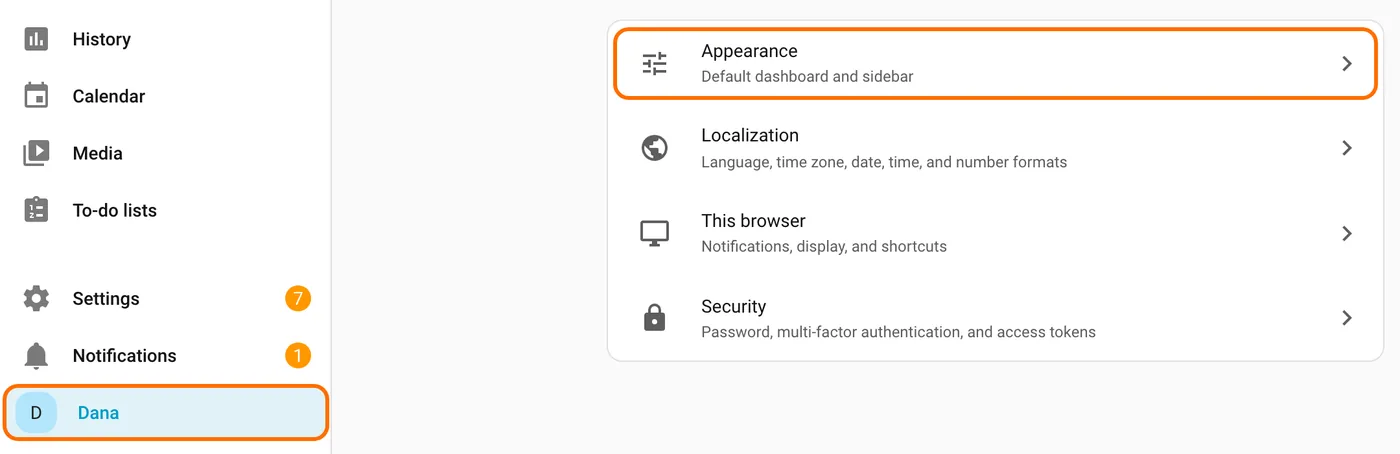
Step 1: Open Appearance in your profile
Click your name at the bottom of the sidebar to open your user profile, then click Appearance (under it it says "Default dashboard and sidebar").
Step 2: Press Edit
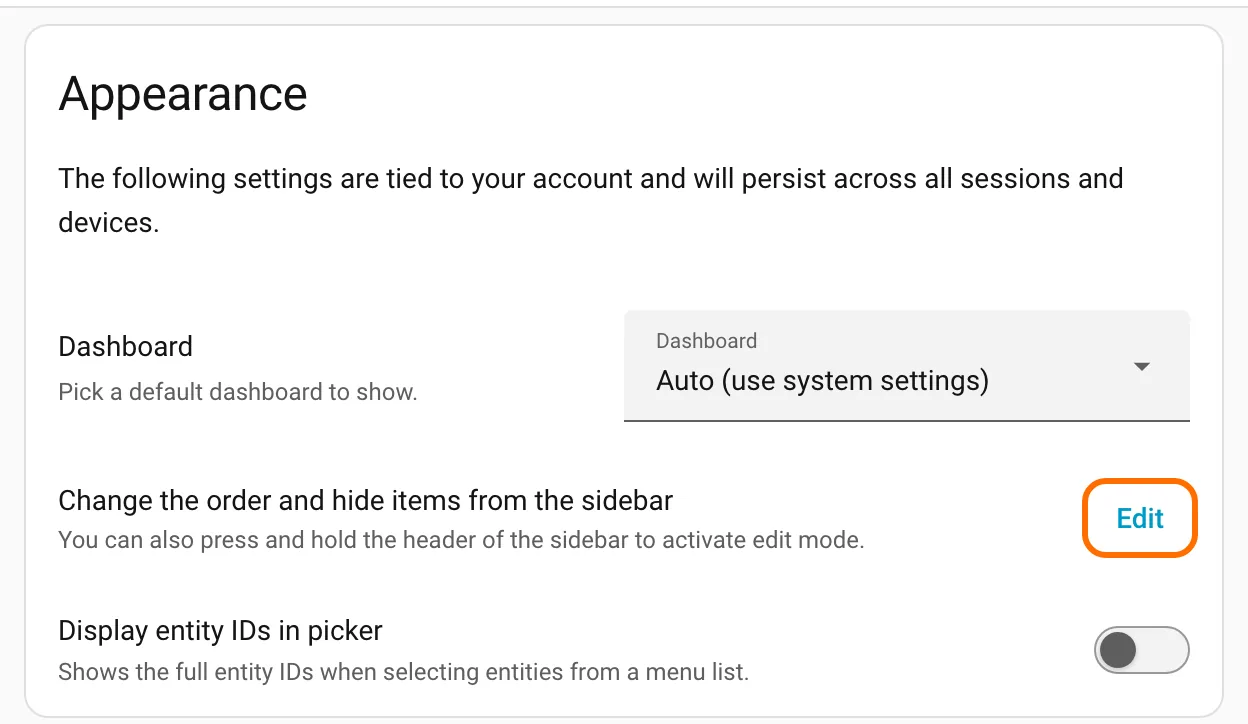
Next to "Change the order and hide items from the sidebar", press Edit. A window called "Edit sidebar" opens.
Step 3: Drag and hide
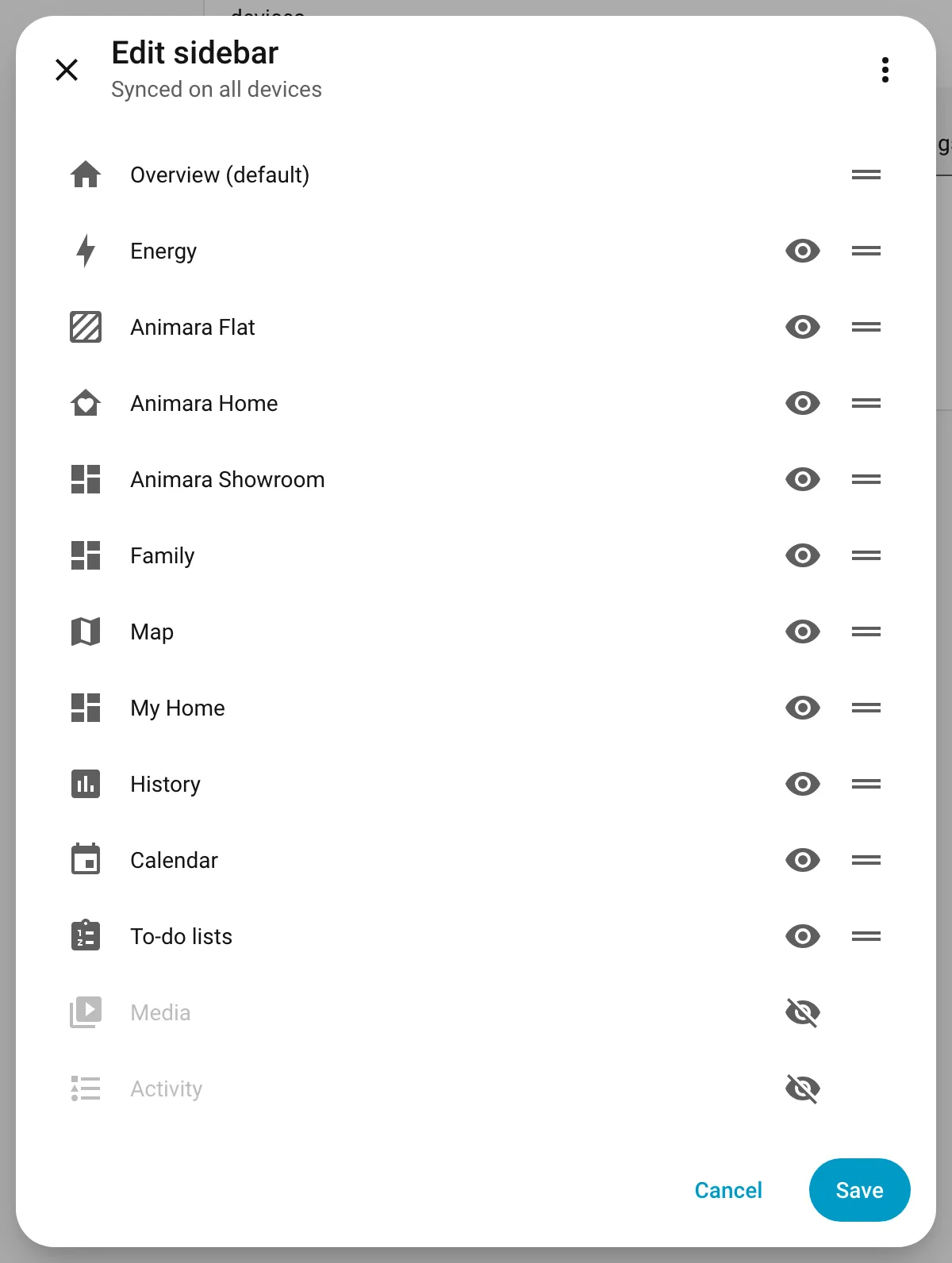
Drag items by the two short lines on the right to put the ones you use most at the top. Press the eye icon next to items you never use (for example Media, Activity, History). A hidden item turns grey, gets a crossed out eye and moves to the bottom of the list. Press the crossed out eye to show it again. Overview always stays, and Settings and Notifications are not in this list.
Step 4: Save
Press Save. The window says "Synced on all devices": the change follows your user to every phone, tablet and computer you sign in on. Other users, such as a wall tablet user or a family member, keep their own sidebar.
Step 5: Reset to defaults
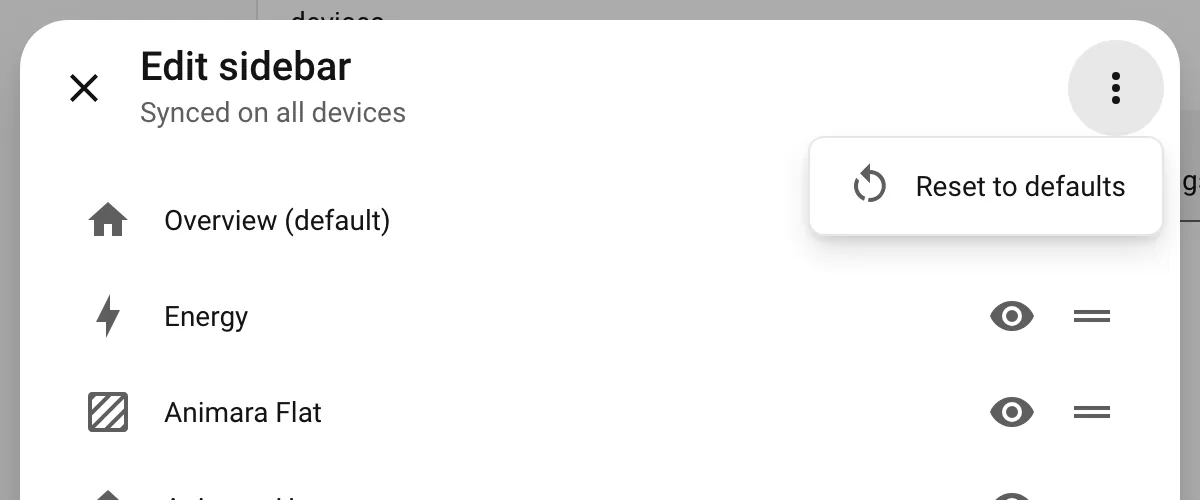
Changed your mind? Open the same window, press the three dots at the top right and choose Reset to defaults. Home Assistant asks "Are you sure?"; press Reset. The original order comes back and every hidden item shows again right away, without pressing Save.
Shortcut: press and hold the "Home Assistant" title at the top of the sidebar for about a second. The same "Edit sidebar" window opens. Home Assistant mentions this itself under the setting: "You can also press and hold the header of the sidebar to activate edit mode."
What about my own dashboards?
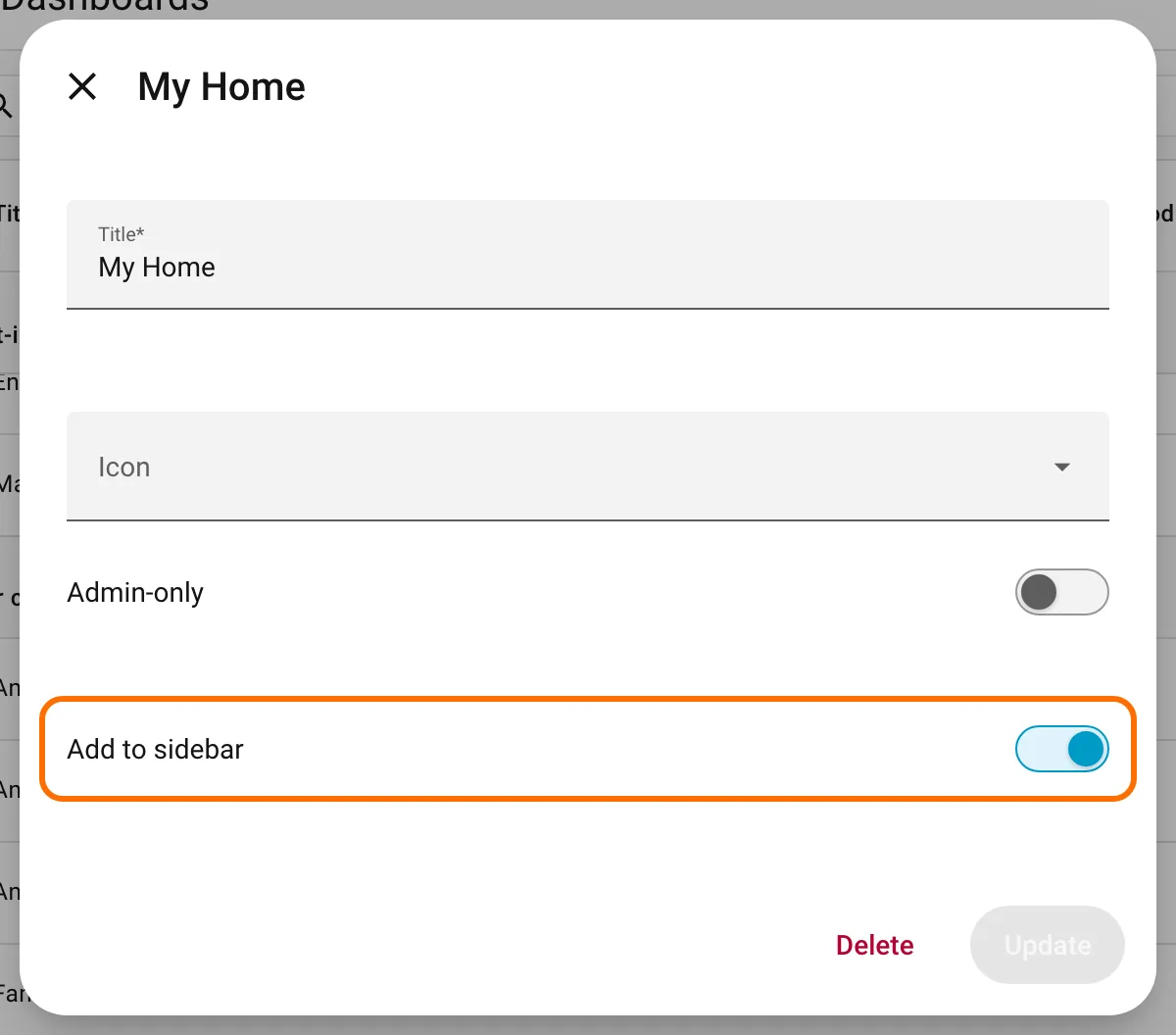
For dashboards you made yourself, go to Settings, Dashboards. Press the three dots at the end of the dashboard's row (clicking the row itself opens the dashboard) and choose Edit. Turn the "Add to sidebar" switch off or on and press Update. This switch is for the whole home, so it changes the sidebar of every user. To hide a dashboard only for yourself, use the eye icon in the Edit sidebar window instead.
The Dashboards list also shows some built in dashboards (such as Overview, Lights and Energy), but not pages like Media, Activity, History, Calendar or To-do lists. That is why many people think those cannot be hidden. They can, with the eye icon in your profile.
Tip for a wall tablet
Give the tablet its own Home Assistant user, hide everything in its sidebar except the dashboard it should show, and set that dashboard as its default. The screen then looks like a finished panel, not a settings app. Our guide on locking a wall tablet for guests and kids shows how to set up that user step by step.
If you want the dashboard itself to look finished too, Animara Home builds itself from your rooms with animated icons that follow each device's real state: https://animara.io . You can try 12 icons for free first: https://github.com/animaraicons/animara-free-sampler
Questions and answers
Can I remove Media or Activity from the Home Assistant sidebar?
Yes. Click your name, open Appearance, press Edit next to "Change the order and hide items from the sidebar", press the eye icon next to those items and press Save. They are built in pages, so they do not appear in Settings, Dashboards.
Can I reorder the Home Assistant sidebar?
Yes, in the same Edit sidebar window: drag the items into the order you want and press Save.
Does hiding a sidebar item delete it?
No. It only hides the link for your user. The page still works, and Reset to defaults brings everything back.
Is the sidebar order the same for every user?
No. Each user sets their own, which is handy for a wall tablet or a child's account. Only the "Add to sidebar" switch of a dashboard in Settings, Dashboards changes it for everyone.