How do I lock my Home Assistant wall tablet so guests and kids can't change anything?
Published 15 November 2026
Home Assistant has no "guest mode" switch, but three built in steps get you very close: a separate user for the tablet, a small dashboard for that user, and a kiosk browser.
Three steps
Step 1: make a separate user for the tablet
In Settings > People, select Add person and give it a name, for example Wall tablet. Turn on Allow login, choose Create a new username, and pick a username and password. Turn on Local access only, so the tablet login does not work outside your home, and leave Administrator off. A user without admin rights cannot edit dashboards or open most settings.
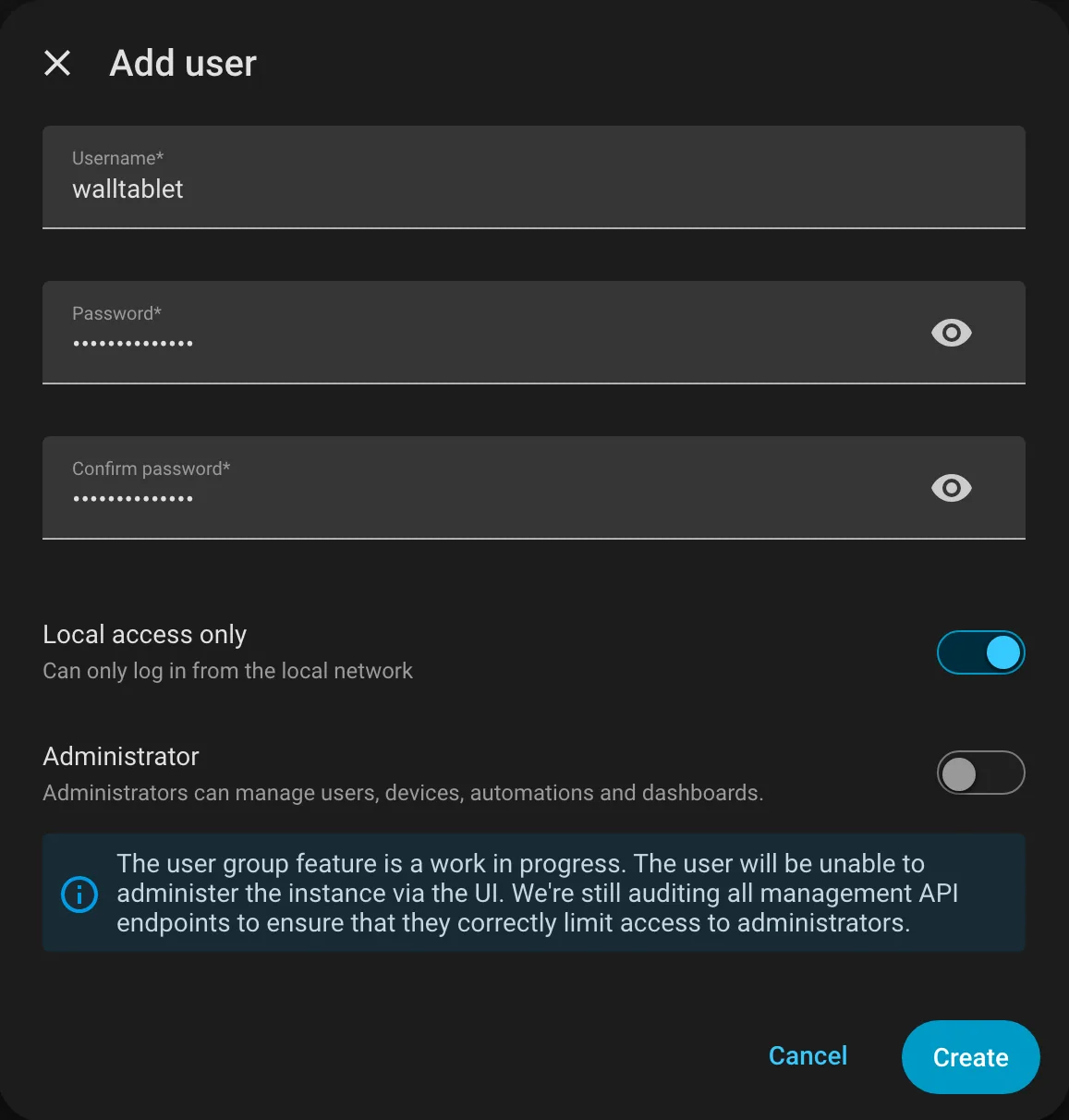
Step 2: give that user its own simple dashboard
Create a new dashboard with only the rooms and devices guests need, for example the living room and dining room lights. Sign in on the tablet as the tablet user, open the user name at the bottom of the sidebar, then Appearance, and pick this dashboard under Dashboard. The default dashboard belongs to the user, not to the device, which is exactly why a separate user is needed.
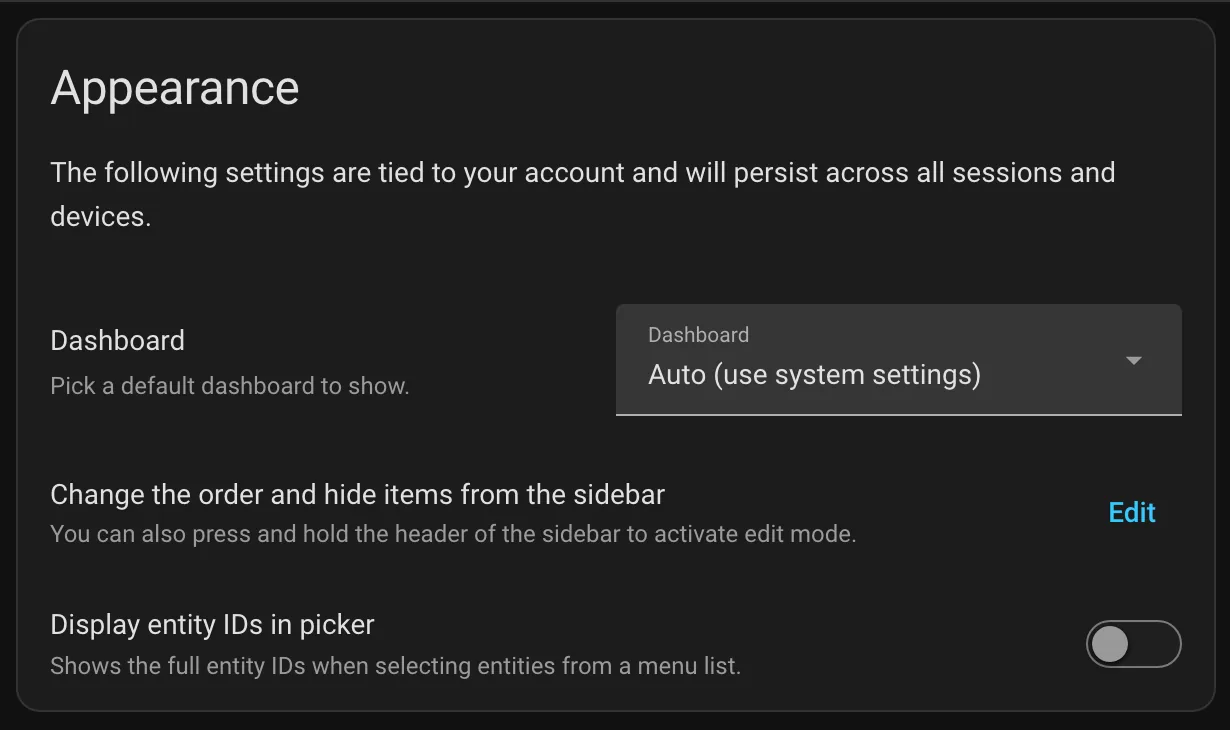
Step 3: hide everything else
In Settings > Dashboards, open the menu (three dots) next to each of your own dashboards, choose Edit, turn on Admin-only and select Update. Those dashboards disappear from the tablet's sidebar. Then run the tablet in a kiosk browser (for example Fully Kiosk Browser on Android) so nobody can leave the page or open other apps.
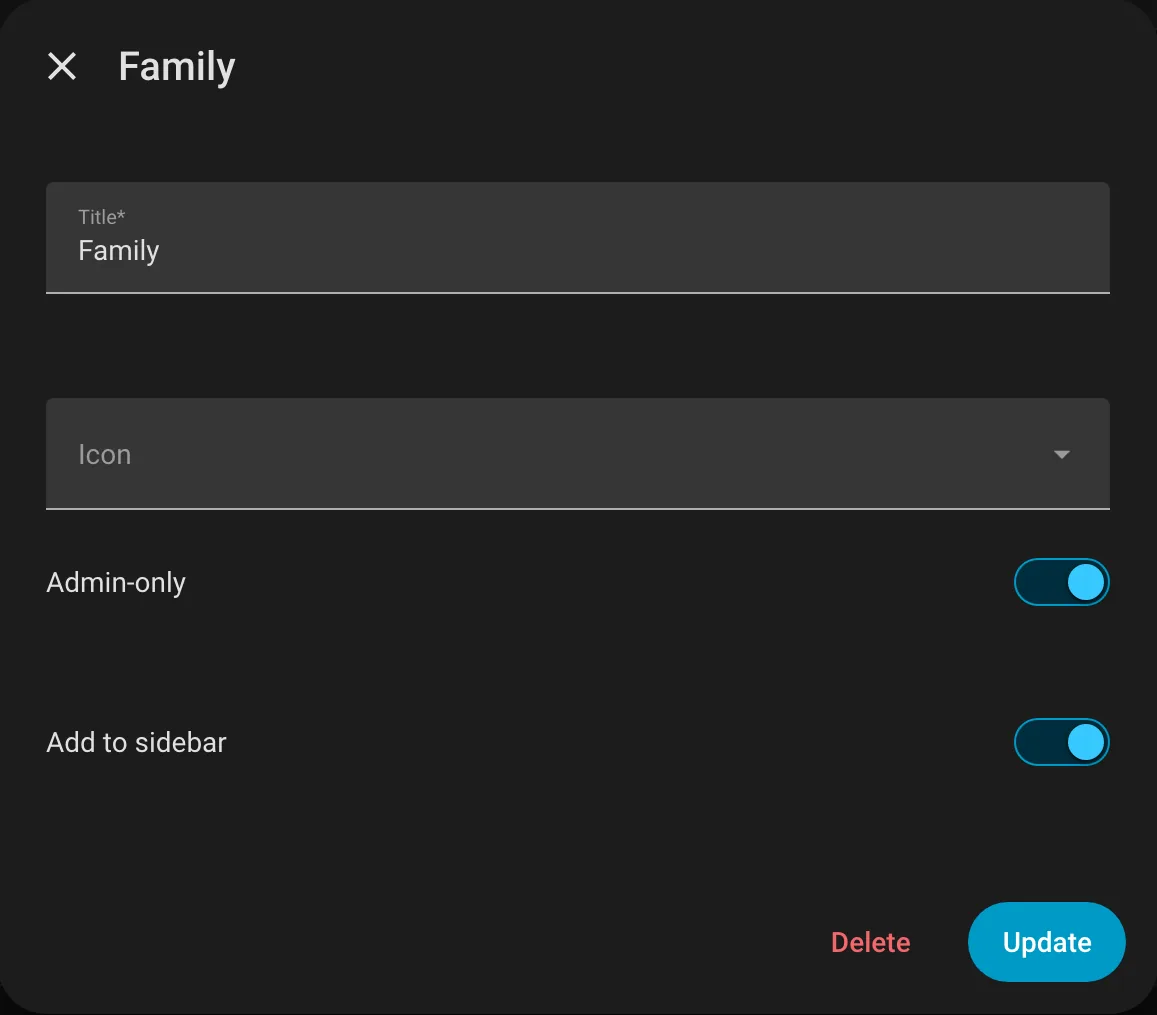
Good to know
This hides things, it is not a security lock. Search and voice can still reach devices that are not on the guest dashboard, and anyone with a login can see more than the dashboard shows. Keep locks, alarms and cameras out of the guest user's way, and do not leave admin accounts signed in on shared screens.
Not sure which screen to hang on the wall? See which display to choose for a Home Assistant dashboard.
Make it easy to read
Guests do not know your entity names. Big tiles, clear room names and icons that show the real state at a glance (the AC blowing, the light on, the door locked) help more than any setting. Our Animara Home dashboard builds itself from your rooms and uses animated icons that follow each device's real state, so a guest understands the screen without asking.
Questions and answers
Does Home Assistant have a guest mode?
Not as one switch. Use a non admin user, a dashboard with only the allowed devices, and a kiosk browser on the tablet.
Can I set a different default dashboard for my wall tablet?
Yes, by signing in on the tablet with its own user. The default dashboard is saved per user under Profile > Appearance, not per device.
Can a non admin user edit dashboards?
No. Only administrators can edit and save dashboards.
Is a non admin user secure enough for guests?
It hides settings and other dashboards, but it is not a full permission system. Keep sensitive devices away from shared screens.
Sources: www.home-assistant.io · www.home-assistant.io · community.home-assistant.io